What does DeskTime track?

What does DeskTime track?

DeskTime is designed to deliver maximum productivity insights while respecting employee privacy and minimizing data collection. Let's go over what DeskTime tracks and what it doesn't.

Core pillars of DeskTime tracking

We created DeskTime as a solution that simplifies time tracking and increases trust between employees and employers, not as a surveillance tool for micromanagement.

Core pillars of DeskTime tracking
Privacy

DeskTime tracks only what is necessary to provide accurate time tracking and productivity insights. We also included the Private Time feature, which allows employees to pause all tracking when needed.

Transparency

Employees know when their activity is being tracked, and when it is not. DeskTime displays its status (active, idle, Private Time) in its system tray or menu bar icon, and employees can see what data is gathered about them in their My DeskTime personal dashboard.

Customization

DeskTime tracking can be tailored for each organization, each team, and even each employee. DeskTime provides granular control over which data is tracked, which features are enabled or disabled, and which apps are considered productive or unproductive.

How DeskTime tracking works

Here's what happens when your organization starts using DeskTime.

Install DeskTime
To get accurate productivity and time tracking data, install the DeskTime app on a Mac, Windows, or Linux computer. If you see the DeskTime icon in your system tray or menu bar, the app is active.
Track your activity
DeskTime starts tracking automatically on device start-up. It will quietly run in the background and produce accurate insights with no need to manually start or stop any timers.
View detailed insights
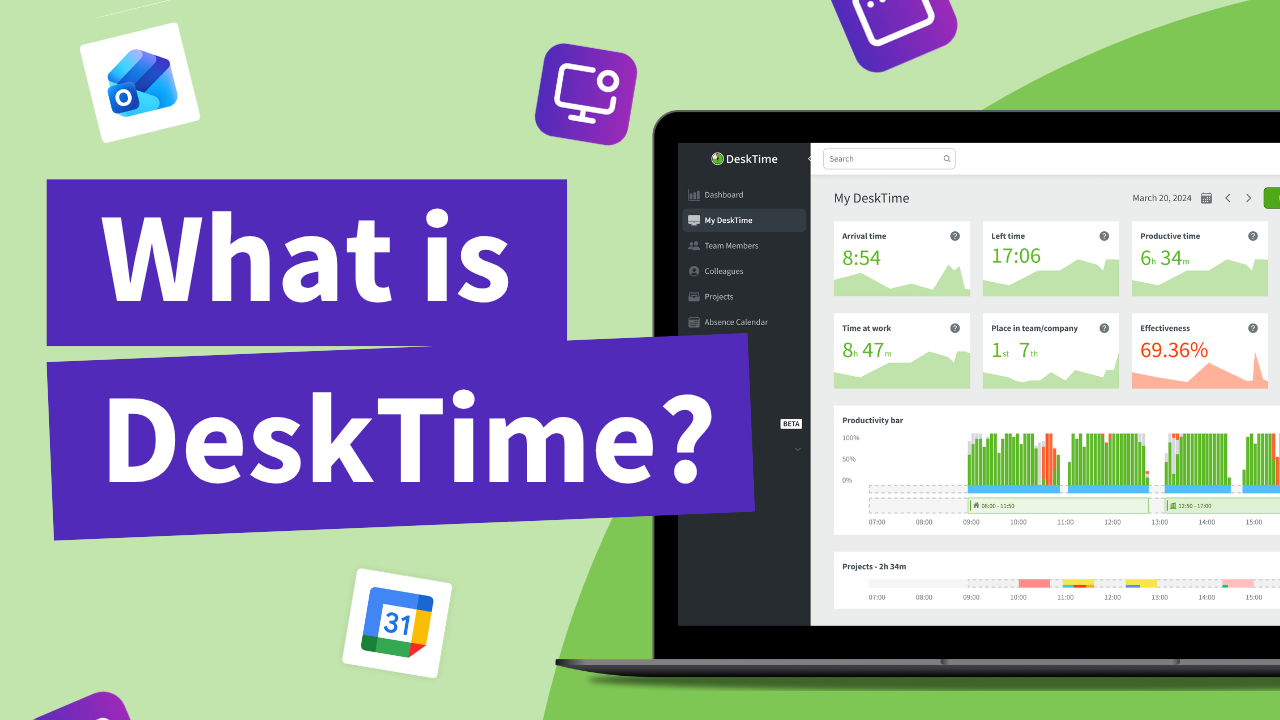
You can analyze your data and view an overview of your workday in your My DeskTime dashboard. See exactly what your manager sees about you, and gain insights about how you can improve your productivity.

What exactly does DeskTime track during my workday?

We gather only what is necessary to provide pinpoint-accurate time tracking and valuable productivity insights, without crossing the line into employee surveillance.

Active apps in focus

DeskTime tracks the opened apps on the device and for how long they are active. It only sees app names, not the content displayed inside them.

Visited websites

DeskTime tracks the websites accessed in the web browser, and for how long they are open. It only sees website names and URLs, not their content.

Power state

Time tracking starts when the device is unlocked, and pauses when the user locks or turns off the computer. This makes it easy to accurately track breaks or away time.

Idle state

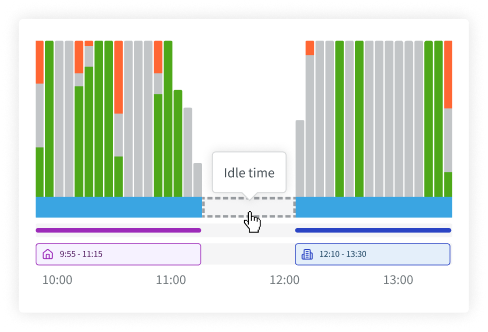
If the user does not move the cursor or press any key for a set period (3 minutes by default), DeskTime pauses time tracking, and the system tray icon displays a pause symbol.

Screenshots

If enabled for the user or team, DeskTime may periodically capture screenshots of the user's device. By default, this feature is disabled.

IP address

If enabled, DeskTime will track the device's IP address. This will show whether the user is connected to the office network or working remotely.

How DeskTime uses this data

Attendance & work time

As a simple, fully automated alternative to manual time sheets, DeskTime provides the following insights about employee attendance:

  • Arrival and departure time: Time of first and last registered activity on the device (or offline appointment).
  • Late/overtime: Does the arrival time align with the planned shift start? Does the employee stay after the shift ends?
  • Time at work: Total duration between arrival and departure, including idle and offline time.
  • DeskTime time: Total time spent with the device awake and active, or in offline appointments.
  • Productive time: Time spent using productive apps and websites, or offline appointments marked as "Productive".
  • Office or remote work: Optionally, IP tracking can be enabled to reveal whether the employee works in the office or remotely, and if they match the planned shift type.

Time tracking

By monitoring device activity, DeskTime produces accurate insights about work time, which will allow managers to better distribute workload, identify roadblocks, and calculate project costs.

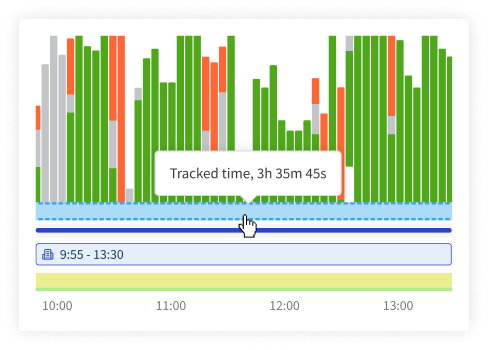
  • Workday overview: DeskTime automatically tracks device usage and categorizes them as productive, unproductive, or neutral time, visualizing them as a timeline.
  • Time spent per app: Each tracked app or website shows for how long it was active on the device. This can also be used to monitor the ROI and adoption of new software tools.
  • Document name tracking: When working with multiple files within the same tool, DeskTime will also show separate time stats for each document (based on the app or website name, e.g., "Microsoft Word - document.docx").
  • Offline time: To track in-person meetings or other work away from the device, users can manually add time logs or sync calendar appointments from Outlook or Google Calendar.
  • Project time: Create tasks or projects (or import them using our integrations), and they can be selected to track time spent working on that specific task or project.

Productivity monitoring

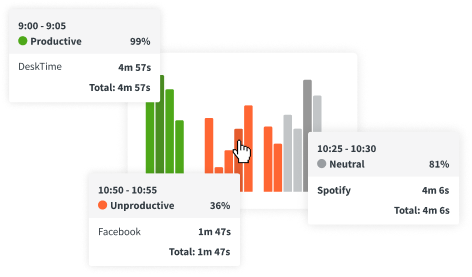
In addition to time tracking, DeskTime reveals insights about the user's productivity. It tracks the active apps and websites on the device and categorizes them as Productive, Unproductive, or Neutral.
These categories can be configured for the entire company or customized for specific teams (for example, set Instagram as productive for digital marketers, but unproductive for everyone else). This will produce the following insights about the employee's work patterns:

  • Productive time: Total time spent on productive apps and websites, or offline meetings set as "productive".
  • Productivity percentage: How much of the total time spent at the device was productive time?
  • Effectiveness percentage: How much of the planned shift duration was productive time?
  • Productivity bar: Visualize productivity patterns over time to see what are the most productive hours of the day.

What DeskTime doesn't track

DeskTime is built to track time and measure productivity, not monitor your team's every move. Here's what we've deliberately left out.

What DeskTime doesn't track
  • DeskTime does not track GPS location.

  • DeskTime does not analyze app or website content.

  • DeskTime does not record or stream screen video.

  • DeskTime does not record video from the webcam.

  • DeskTime does not record device audio.

  • DeskTime does not record audio from the microphone.

  • DeskTime does not log keystrokes or mouse movement.

  • DeskTime does not provide remote access to user devices.

Built for trust, not micromanaging.

DeskTime is intended for teams that value transparency and trust, and we encourage organizations to clearly disclose what is being tracked and for what purpose, and to communicate each team's productivity targets. It should be a tool that benefits the entire team—managers and employees alike.

Privacy-focused features in DeskTime

For even more privacy, we have included the following features.

Private Time

In DeskTime, users can pause all tracking (URL and app tracking, screenshots) with just one button click. Personal communication, banking transactions, sensitive info, password management—with Private Time enabled, you can be sure that these matters stay private. This way, you know when you are being tracked, and crucially, when you are not.

Screenshot blurring

Although the optional Screenshots feature can be useful for managers who need proof of work or are investigating productivity roadblocks, we know that the feeling of being observed can be stressful. That's why in DeskTime, screenshots can be blurred—to provide insights into employee activity while respecting their privacy.

Access governance

Detailed data about the employee (time logs, used apps and websites, productivity insights, and screenshots) can only be viewed by the employee themselves, their team manager, and company administrators. DeskTime offers granular access control so that this data can be viewed on a need-to-know basis.

Data protection & compliance

DeskTime syncs tracking data from user devices with the cloud for easy, centralized access to productivity insights. Here's how we ensure that your data is secure.

End-to-end encryption

Any data tracked and synced by DeskTime is securely encrypted in transit and at rest, by default.

Two-factor authorization

Users can enable 2FA, which prevents unauthorized access even if their login details are compromised.

Security compliance

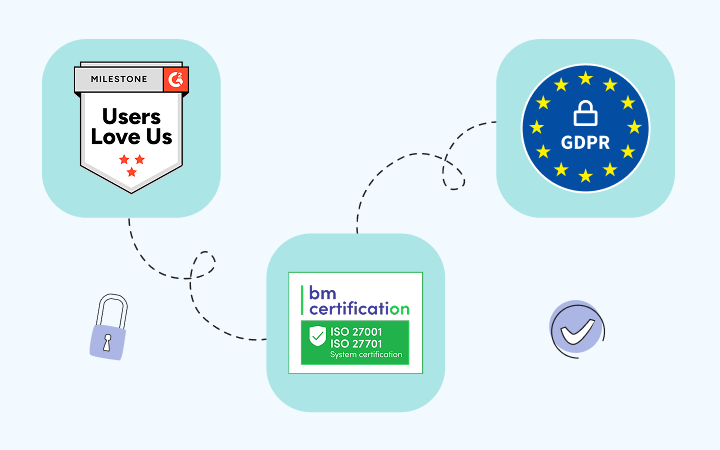
DeskTime adheres to the GDPR, ISO 27001, and ISO 27701 standards, ensuring the safe and secure handling of user data.

Secure cloud storage

DeskTime's main servers are in Europe, and we use trusted cloud partners (AWS, CloudFlare) to protect data against attacks.

Uptime & backups

DeskTime maintains an uptime of 99.95% and performs regular backups to ensure uninterrupted access to your data.

Data retention & deletion

Tracking data is retained only as long as needed and can be permanently deleted on request, in line with GDPR's right to erasure.

Try free for 14 days. No credit card required.

Forget manual timesheets and distractions. With DeskTime, time tracking works as expected — and offers more.

No setup needed. 14 days free, no credit card required.

Frequently asked questions about DeskTime tracking

Yes; once the DeskTime app is installed on the Windows, Mac, or Linux computer, it monitors the active apps and websites to track time and reveal computer usage patterns, and mark moments of inactivity as idle time. DeskTime can only see app and website names, not their content.
DeskTime gives a very detailed look into team and employee productivity for how little it tracks. It measures productive time, shows productivity and effectiveness percentage, shows productivity trends over time, and visualizes the average timeline to show what times of the day are the most productive.
Yes. One way is to press "Quit DeskTime" in the system tray menu, but that will create a gap in your daily timeline and make you appear offline. Another way is by using Private Time, which will pause all tracking on the device (including screenshots) while it is active. This way, you will still appear online, and Private Time will count toward your total time at work (but not toward productive time).
DeskTime logs the active apps on the device that are in focus (e.g., Office, Slack, Spotify), as well as the URL and website name for the active tab in a web browser. It does not track system processes or background tasks; it only tracks what the user is actively using at a given moment.
To do that, you need a time tracking app that gathers enough data to produce valuable insights, but does not cross privacy boundaries. DeskTime monitors device activity to track time and analyze employee productivity, but it intentionally omits surveillance features such as GPS location tracking, keylogging, or webcam recording.
Taking screenshots of employee computers is a serious measure, and we recommend using it only when necessary for proof-of-work, compliance, or individual performance improvement reasons, and not as a default company policy. DeskTime includes screenshot capture as an optional feature, and to increase privacy, we recommend using low-resolution capture and enabling screenshot blurring, so managers can see a general overview of the screen without the risk of accidentally capturing personal information.
DeskTime tracks the active apps and websites on the device, idle time, breaks (when the device is locked), whether you're in the office or working remotely, and some companies may enable screenshot capture for certain teams or employees. In the My DeskTime view, you can see your time tracking and productivity stats exactly as they appear to your managers or administrators.